Welcome to the IT Web Services CMS Website. Here you can find news, status updates, and WordPress support articles related to UBC Okanagan’s content management system.
UBCO CMS Themes
IT Web Services offers two options of WordPress themes for UBC Okanagan websites: UBC CLF 7 Basic and the Faculty & Department Child Theme. You can access the specific support guides for your website by choosing one of the options below.
UBC CLF 7 Basic Theme
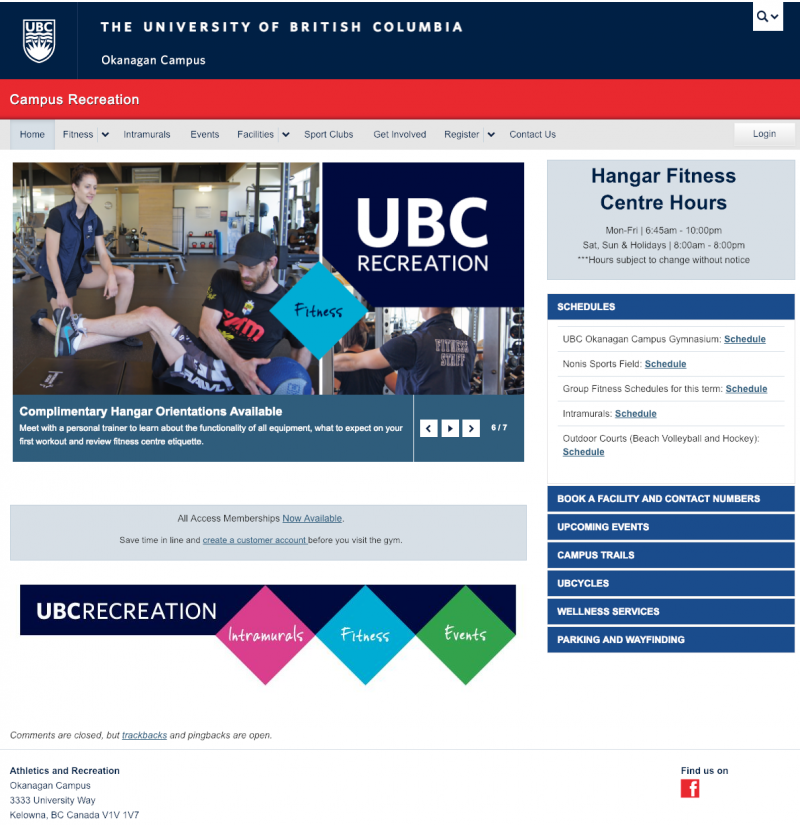
CLF 7 Basic is the standard UBC-wide WordPress theme used for most UBC Okanagan administrative units. It provides the baseline common look-and-feel for all UBC websites.
Campus Recreation website using the UBC CLF 7 Basic Theme
Faculty & Department Child Theme
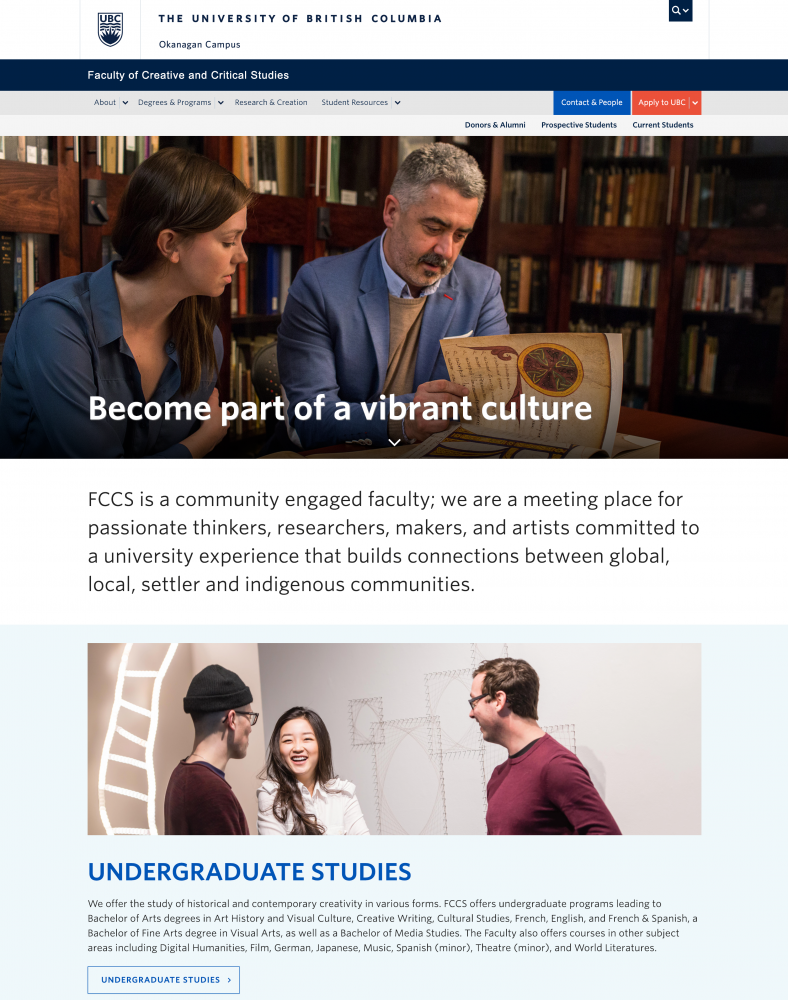
The Faculty & Department Child Theme extends the UBC CLF 7 theme and helps UBCO campus communicators create great looking, easy-to-use, modular websites. It was developed for the promotion of high-profile departments and prospective student-facing websites.